Set Up Remote Backups Using this Amazing Website Rsync Backup Script
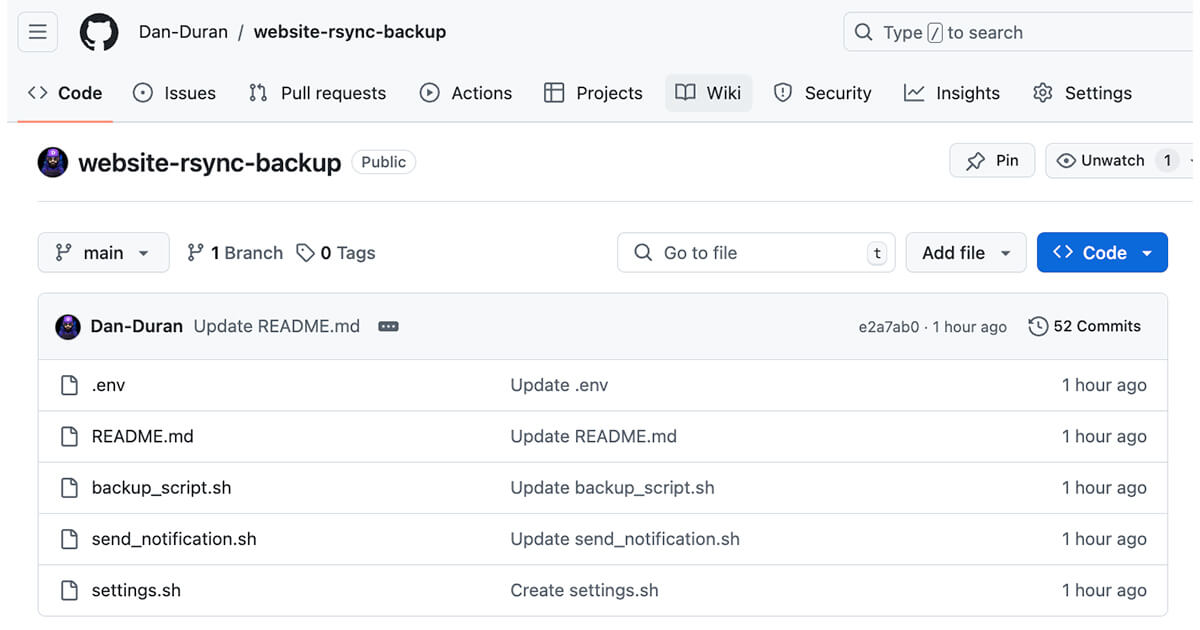
This tutorial will guide you through the process of setting up remote backups for your website using our awesome Website Rsync Backup Script. We'll cover creating an SSH key, configuring the backup server, and running the backup script remotely.
Prerequisites
- A Linux-based backup server with root access
- SSH access to your website's server
- Git installed on your backup server
- The website-rsync-backup repo
Step 1: Set Up the Backup Server
Log in to your backup server as root or a user with sudo privileges.
Clone the backup script repository:
git clone https://github.com/Dan-Duran/website-rsync-backup.git
- Navigate to the cloned directory:
cd website-rsync-backup
- Make the scripts executable:
chmod +x backup_script.sh send_notification.sh
Step 2: Generate an SSH Key Pair
- On your backup server, generate a new SSH key pair:
ssh-keygen -t rsa -b 4096 -C "[email protected]"
# Replace "[email protected]" with your email or a descriptive comment.
- When prompted, save the key to /root/.ssh/website_backup_key (or choose another path if preferred). Do not enter a password for the key (skip, skip, skip, etc). It should look like this:
+---[RSA 4096]----+
|          .o=+=.=|
|           ..=.B*|
|          . + +=E|
|         o + oo+.|
|        S + . .oB|
|           o ...B|
|          +   o++|
|         o.... .B|
|          ++.. o*|
+----[SHA256]-----+
- Set the correct permissions for the SSH key:
chmod 600 /root/.ssh/website_backup_key
Step 3: Add the Public Key to Your Website Server
- Display the public key:
cat /root/.ssh/website_backup_key.pub
It should look like this:
ssh-rsa AAAAB3NzaC1yc2EAAAADAQABAAACAQCs7NveAn4nvfDhhtHEbsXcUDEG/AqiQD0i+VZGQn4b9pzg0AQLd76a1Yb7z6T7FBTSiA2qQXdfVrHB4p3NuRh+WKeBSS1U4ZLWiXKhOT0KHOtfdCrGNfZFweOpI9SfvKDucU5WZ0TjUtk/hE3pxg1AFS1ZCFp58wFLxbRYYYv/36REST-OF-KEY-XaPDZ1YJW4LbkBixc7U6C7CAn+cCCGXch2RK0/1JVg5Ui2lLKaV+f7PoLFTKBN47z+ZHMOuFKukUx4853kDN2gYTksPDxNL1ks94Kz9Y6TfzARM3tauYkYba6C6c5VojH45RDxSNjc415VezrtLCmtu3MZL7vrRG8ZIDzVPZb9yOQYw== backup-user@backup-server
Copy the entire output.
Log in to your website server.
Edit the authorized_keys file for the user that will perform the backups:
nano ~/.ssh/authorized_keys
- Paste the public key on a new line and save the file.
Step 4: Configure the Backup Script
- Back on your backup server, create the settings.sh file:
nano settings.sh
- Add the following content, adjusting the values as needed:
# Base Directory Configuration
BASE_DIR="/root/website-rsync-backup"

# General Configuration
SITE="YourWebsiteName"
DEST_BASE="$BASE_DIR/backups"
RETENTION_DAILY=90
RETENTION_WEEKLY=52
RETENTION_MONTHLY=24
REQUIRED_DISK_SPACE=1048576 # 1GB in KB
LOG_FILE="$BASE_DIR/website-backup.log"

# Exclude Patterns
EXCLUDE=(
    "cache"
    "**.log"
    "tmp"
    "**.tmp"
    "node_modules"
)

# Backup Configuration
BACKUP_FROM_REMOTE_SITE=true
REMOTE_PATH="/var/www/html/"
REMOTE_PORT=22
SSH_METHOD="key"

# Notification Settings
ENABLE_NOTIFICATIONS=true
NOTIFY_ON_FAILURE=true
NOTIFY_ON_SUCCESS=true
EMAIL_SCRIPT="$BASE_DIR/send_notification.sh"

# Email Method
EMAIL_METHOD="postmark"

# Postmark Configuration (non-sensitive parts)
POSTMARK_API_URL="https://api.postmarkapp.com/email"
- Create the .env file:
nano .env
- Add the following content, replacing the placeholder values:
# Remote Backup Configuration
REMOTE_IP=your_website_ip_address
REMOTE_USER=your_website_username
SSH_KEY=/root/.ssh/website_backup_key

# Postmark Configuration
POSTMARK_TOKEN=your_postmark_token

# Email Addresses
FROM_EMAIL=[email protected]
TO_EMAIL=[email protected]
- Secure the .env file:
chmod 600 .env
Step 5: Test the SSH Connection
- Test the SSH connection to your website server:
ssh -i /root/.ssh/website_backup_key your_website_username@your_website_ip_address
- If successful, you should be logged in to your website server. Exit the SSH session:
exit
Step 6: Run the Backup Script
- Run the backup script:
sudo ./backup_script.sh
-Check the log file for any errors:
cat website-backup.log
Step 7: Set Up Automated Backups
- Open the root user's crontab:
sudo crontab -e
- Add a line to run the backup daily at 2 AM:
0 2 * * * /root/website-rsync-backup/backup_script.sh
- Save and exit the editor.
Troubleshooting
- If the script fails, check the log file for detailed error messages.
- Ensure the SSH key has the correct permissions (600).
- Verify that the remote user has read access to the website files.
- Check that the backup server has sufficient disk space.
For more detailed information and advanced configuration options, please refer to the GitHub repository: https://github.com/Dan-Duran/website-rsync-backup
Congratulations! You've now set up automated remote backups for your website. Your backups will run daily, with weekly and monthly archives maintained according to your retention settings.
Latest Comments
Sign in to add a commentNo comments yet. Be the first to comment!